
Blog
Can IT See Your Personal Apps with Android Work Profile?
Imagine installing your company’s management app on your personal phone. A few minutes later, Outlook appears twice. Chrome has another version. Some application icons now carry a small briefcase symbol. Your first question is probably simple: Can my employer see everything on this phone? You might use WhatsApp for private conversations, Google Photos for family […]
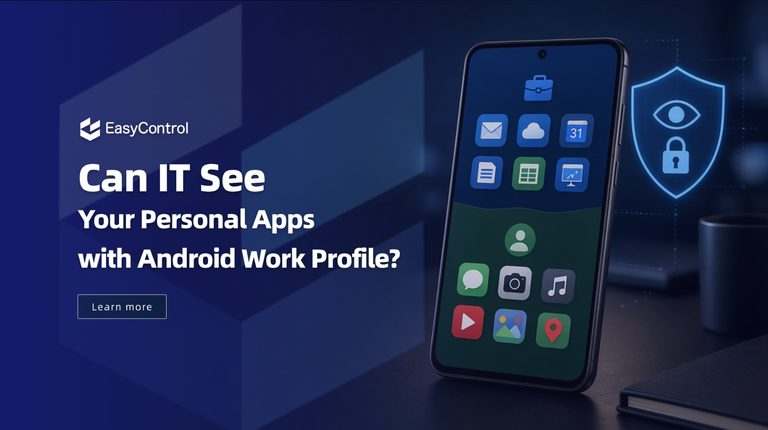
Table of Contents
- Can IT See Your Personal Apps on Android Work Profile?
- What Actually Happens to Your Personal Apps After Enrollment?
- What Is an Android Work Profile and How Does It Work?
- What Can an MDM Administrator Actually Control?
- Personal BYOD vs. Company-Owned Work Profile vs. Fully Managed Android
- Why Can IT Restrict Copying and Sharing Between Personal and Work Apps?
- Does a Work VPN Monitor Your Personal Internet Activity?
- What Happens When You Remove an Android Work Profile?
- How to Set Up or Add an Android Work Profile
- Android Work Profile Troubleshooting: 5 Problems Employees Commonly Face
- What IT Teams Should Explain Before Employees Enroll
- Frequently Asked Questions About Android Work Profile
- Can IT see my personal apps on Android?
- Can my employer read my personal WhatsApp messages?
- Can IT see my personal browsing history?
- Can I add a Work Profile to my existing Android phone?
- How do I remove Work Profile without losing personal data?
- Does Android Work Profile mean my company owns my phone?
- What is the difference between Android Work Profile and fully managed Android?
- Protect Company Data Without Compromising Employee Privacy
- Manage Android Work Profiles with EasyControl
- References
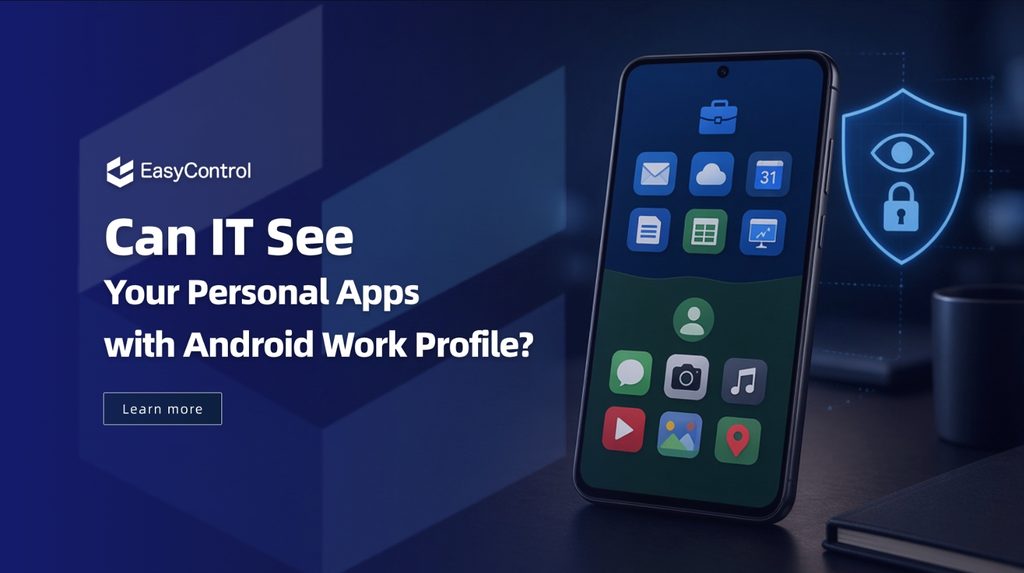
Imagine installing your company’s management app on your personal phone. A few minutes later, Outlook appears twice. Chrome has another version. Some application icons now carry a small briefcase symbol.
Your first question is probably simple: Can my employer see everything on this phone?
You might use WhatsApp for private conversations, Google Photos for family pictures and banking apps for personal transactions. None of that should become visible just because you need company email.
Android Work Profile was designed to separate these two environments. It gives organizations control over business applications while keeping personal application data separate.
But there are details employees often misunderstand. Can IT see personal apps? Can administrators restrict personal applications? Does a company-owned phone work differently? And what happens when you remove the Work Profile?
Let’s look at what happens behind the scenes.
Can IT See Your Personal Apps on Android Work Profile?
On personally owned Android devices enrolled with a Work Profile, IT administrators cannot access personal app content, personal messages, photos, or personal app usage history through standard Android Enterprise management.
On company-owned devices with a Work Profile, administrators have additional device-level management capabilities, including the ability to restrict certain personal applications. However, these controls do not automatically provide access to personal app content or usage history.
However, administrators can see certain device information and manage applications inside the work environment. Company-owned devices also support additional restrictions that may affect personal-profile settings and application installations.
Here is the practical difference.
| Information | What IT can access |
| Personal WhatsApp messages | Not accessible through standard Work Profile management |
| Personal photographs | Not accessible through standard Work Profile management |
| Personal Gmail content | Not accessible through standard Work Profile management |
| Personal app usage details | Not exposed through standard Work Profile management |
| Managed work applications | Can be managed by IT |
| Basic device information | Certain technical details are visible |
| Work-profile network activity Personal app restrictions | May be visible depending on network configuration Additional restrictions may apply on company-owned devices |
What IT can typically see: The device information available to IT depends on the Android version, device ownership model, and management solution. Personally owned Work Profile devices generally provide more limited access to hardware identifiers than fully managed company-owned devices.
For example, an administrator may know your phone model and operating system version. That doesn’t mean they can open your personal WhatsApp account.
Google’s official Android Work Profile privacy guidance explains what organizations can see and manage.
What Actually Happens to Your Personal Apps After Enrollment?
Your existing personal applications generally stay in their original environment after enrollment.
Android doesn’t automatically move them into company management. Instead, your organization creates a separate Work Profile and installs the applications required for business activities.
Consider an employee who already uses Outlook, Chrome and Google Calendar.
After enrollment, the company may install managed versions of these applications. The employee can then use personal and work accounts independently.
This explains why some applications appear twice.
| Personal application | Managed work application |
| Personal Outlook account | Company Outlook account |
| Personal Chrome profile | Managed Chrome profile |
| Personal calendar | Company calendar |
| Personal productivity apps | Approved business apps |
The briefcase badge identifies the work version.
This is a normal feature of Android, not evidence that your personal applications have been copied into company management.
What Is an Android Work Profile and How Does It Work?
Android Work Profile is an Android Enterprise management feature that separates work applications and business data from personal applications and information.
Organizations looking for broader Android device management capabilities can explore how Android Enterprise and AOSP deployments work across different business environments.
It creates an isolated environment with its own managed applications, accounts and policies.
Think of your phone as having two separate spaces.
Personal profile
- Personal Gmail
- Personal photographs
- Personal browser and accounts
Work profile
- Company email
- Microsoft Teams
- Managed applications
- Corporate documents
The separation is useful for Bring Your Own Device (BYOD) programs. Employees can access company resources without combining business and personal information.
The organization manages the work environment. The personal environment remains separate.
What Can an MDM Administrator Actually Control?
An MDM platform helps IT teams manage applications, enforce security policies and protect corporate information across enrolled devices.
For example, imagine a company with 500 Android phones used by employees across different locations.
The IT team needs to distribute approved applications, configure security requirements and remove corporate access when employees leave.
Android Work Profile provides controls for these tasks.
Administrators can generally:
- Install and uninstall managed work applications.
- Configure supported application permissions.
- Enforce work-profile security requirements.
- Manage access to corporate accounts and resources.
- Restrict certain types of data sharing between profiles.
- Suspend work access when a device becomes non-compliant.
- Remove locally stored work-profile information remotely.
These capabilities protect business information without automatically exposing personal application content.
An important distinction: Mobile device management capabilities depend on the Android Enterprise management mode and the management solution’s implementation. Not every product supports every Android policy.
Personal BYOD vs. Company-Owned Work Profile vs. Fully Managed Android
This is where many employees and even IT teams get confused.
Android supports different management models. They do not all give administrators the same level of control.
Google describes three important deployment approaches.
1. Personally owned device with Work Profile
An employee uses their own Android phone for work.
The organization manages the Work Profile, including its applications, accounts and security policies. It cannot access the personal profile through standard Work Profile management.
This is the typical BYOD arrangement.
2. Company-owned device with Work Profile
Company-owned devices with a Work Profile maintain separation between work and personal data, while allowing administrators to apply additional device-wide security policies.
Depending on the Android version and management configuration, IT administrators may restrict certain personal applications, control application installation, and enforce device-level security settings.
However, the ability to restrict personal applications does not mean administrators can read personal messages, access personal photographs, or view personal browsing history through standard Android Enterprise management.
3. Fully managed Android device
A fully managed device is generally company-owned and intended exclusively for work.
The organization has broader control over device-level policies and configuration. This is a different management model, not simply another name for Work Profile.
| Management capability | Personal BYOD Work Profile | Company-owned Work Profile | Fully managed device |
| Work applications managed | Yes | Yes | Yes |
| Separate personal profile | Yes | Yes | Not the standard work-only model |
| Personal application usage visible to IT | No | No | No separate personal profile by default |
| Additional device-wide restrictions | Limited | Broader | Broadest management scope |
| Personal app restrictions | Limited | Possible | Device-wide management |
| Typical use | Employee-owned phones | Mixed-use company phones | Work-only devices |
Why does this matter?
An employee using a personal phone should not assume the organization has the same controls it would have on a company-owned, fully managed device.
Before enrolling, ask your IT administrator which Android Enterprise management mode applies.
Why Can IT Restrict Copying and Sharing Between Personal and Work Apps?
You receive a confidential spreadsheet through your company email. You want to copy some information into your personal messaging application.
Android may prevent that action.
This is an example of cross-profile data management. Organizations can configure restrictions that control how information moves between managed and personal applications.
Depending on the configuration, restrictions may apply to:
- Copying and pasting text between profiles.
- Sharing corporate documents with personal apps.
- Opening work links in personal browsers.
- Sharing managed contacts.
- Transferring files between work and personal environments.
These policies help reduce accidental data leaks.
They do not automatically give administrators access to personal application content.
The exact restrictions depend on the Android version, application behaviour and management configuration.
Does a Work VPN Monitor Your Personal Internet Activity?
Seeing a VPN icon after enrollment can make employees wonder whether their employer can monitor every website they visit.
But a Work Profile VPN is not necessarily a device-wide VPN.
A VPN configured specifically for the Android Work Profile generally routes traffic from work-profile applications rather than personal-profile applications.
However, VPN behavior and network visibility depend on the device’s management mode, VPN configuration, and any additional network or security software installed. Employees should review their organization’s network monitoring and privacy policies to understand which traffic may be monitored.
For example, your company may route managed Outlook traffic through its corporate VPN. Your personal browser may continue using its normal network connection.
This distinction is important because VPN configuration determines which applications use the managed connection.
If your organization uses additional network monitoring or device-wide networking policies, those arrangements should be explained in its privacy documentation.
What Happens When You Remove an Android Work Profile?
Employees may leave an organization, change jobs or simply stop using a company account.
In these situations, the organization may remove the Work Profile to revoke corporate access.
On personally owned Android devices, removing the Work Profile generally deletes work applications, work accounts, and locally stored work data without affecting personal applications, photographs, or other personal information.
However, company-owned devices may allow administrators to perform a factory reset of the entire device. Unlike selective Work Profile removal, a factory reset may erase both work and personal data stored locally on the device.
Employees should confirm their device’s management mode and backup requirements before requesting device removal or unenrollment.
How to Remove an Android Work Profile
Follow these general steps:
- Open your phone’s Settings.
- Find Passwords and accounts or the equivalent settings menu.
- Locate the Work tab or Work Profile settings.
- Select Remove Work Profile.
- Confirm the removal.
Menu names differ between Android versions and manufacturers. Your organization may also restrict manual removal.
Remember that removing local work data does not automatically delete information stored on company servers.
How to Set Up or Add an Android Work Profile
If your company supports personally owned Android Work Profile enrollment, you can usually add a managed environment to your existing phone.
You do not normally need to purchase a second device or remove your personal applications.
The setup process usually involves these steps:
- Contact your IT department for official enrollment instructions.
- Install the management application specified by your organization.
- Sign in using your company account.
- Follow the instructions to create the Work Profile.
- Review the enrollment terms and management permissions.
- Allow approved work applications to install.
- Open the Work tab in your app drawer.
The exact setup method depends on the organization’s Android Enterprise configuration.
Before enrolling, ask what information the organization collects and which device policies it will enforce.
Android Work Profile Troubleshooting: 5 Problems Employees Commonly Face
Not every Work Profile problem means something is wrong with your phone. Some issues occur because of enrollment policies, profile settings or application restrictions.
Here are five situations worth checking.
1. Why is my Work Profile paused?
Android allows users to pause their Work Profile on supported devices.
When paused, work applications may stop receiving notifications and synchronizing information.
Open the Work tab in your app drawer or check Quick Settings. Look for the option to resume the Work Profile.
Some company-owned devices may have restrictions on how long the profile can remain paused.
2. Why can’t I copy text from a work app to a personal app?
Your organization may have configured cross-profile sharing restrictions.
For example, copying text from company email into a personal messaging application may be blocked to protect corporate information.
Check with your IT administrator before assuming the application is malfunctioning.
3. Why does my work application have a briefcase icon?
The briefcase badge identifies an application installed in the Work Profile.
It helps distinguish managed work applications from personal applications.
You may see two versions of the same application because Android keeps their data and accounts separate.
4. Why can’t I remove my Work Profile?
Your organization may have restricted manual removal or may require an administrator to release the device from management.
Contact your IT department before attempting a factory reset.
5. Why is my work application not receiving notifications?
Check whether the Work Profile is paused, whether the application has notification permission and whether the device has an active network connection.
Your organization’s battery, application and network policies may also affect background activity.
What IT Teams Should Explain Before Employees Enroll
Technology can separate business and personal information, but employees still need to understand what enrollment means.
A good BYOD policy should answer these questions before the management application is installed:
| Employee question | What IT should explain |
| Can you see my personal apps? | Explain the Work Profile privacy boundary |
| Can you remove my personal photos? | Explain selective work-data removal |
| Which apps will you manage? | Provide the approved application list |
| Do you use a VPN? | Explain which applications use it |
| What happens when I leave? | Explain access removal and data retention |
| Can you restrict my phone? | Explain policies based on device ownership |
This transparency helps employees make informed decisions.
It also reduces support requests caused by misunderstandings about MDM and personal privacy.
Frequently Asked Questions About Android Work Profile
Can IT see my personal apps on Android?
Standard Work Profile management keeps personal applications separate from the managed work environment. On company-owned devices, administrators may have additional controls over personal applications.
Can my employer read my personal WhatsApp messages?
No. Standard Android Work Profile management does not give employers access to personal WhatsApp messages or conversations.
Can IT see my personal browsing history?
No, standard Work Profile management does not expose personal browsing history. However, company-managed network services may have separate monitoring policies.
Can I add a Work Profile to my existing Android phone?
Yes. You can add a Work Profile to your personal Android phone if your organization supports BYOD enrollment.
How do I remove Work Profile without losing personal data?
On supported personally owned devices, select Remove Work Profile in Android Settings. This generally removes work data while preserving personal information.
Does Android Work Profile mean my company owns my phone?
No. Android Work Profile supports both personally owned and company-owned devices. Device ownership and management mode are separate things.
What is the difference between Android Work Profile and fully managed Android?
Work Profile separates work and personal environments, while fully managed Android gives organizations broader control over company-owned, work-only devices.
Protect Company Data Without Compromising Employee Privacy
Employees should not have to choose between accessing company resources and keeping their personal information private.
Android Work Profile creates a dedicated environment for business applications, corporate accounts and managed information. It gives IT teams the controls they need to protect work data while keeping it separate from personal activities.
For businesses, the challenge is choosing the right management model and applying the right policies.
Manage Android Work Profiles with EasyControl
EasyControl helps organizations manage Android Enterprise devices through centralized device enrollment, application deployment, security policies, and compliance monitoring.
By selecting the appropriate Android Enterprise management mode, businesses can protect corporate applications and data while maintaining the separation between work and personal environments.
Whether managing employee-owned BYOD devices or company-owned Android devices, IT teams can use EasyControl to simplify device administration and apply supported security policies based on their deployment requirements.
The best device management approach isn’t about controlling every aspect of an employee’s phone. It is about securing company information while respecting the boundary between work and personal life.
Explore EasyControl UDM to learn how IT teams can manage devices, applications, policies, and compliance through one platform.
References
Articles connexes
Continuez à explorer les ressources EasyControl
Allez plus loin avec la documentation, les guides stratégiques, les témoignages de clients et le contenu vidéo dans le centre de ressources.