Blog
How to Set Up Zebra Devices: Complete Step-by-Step Guide with EasyControl
Set up Zebra devices for enterprise use involves more than simply enrolling hardware. Organizations typically use Zebra StageNow for initial device provisioning, while an enterprise Mobile Device Management platform helps manage devices throughout their lifecycle. EasyControl Unified Device Management works alongside Zebra’s deployment tools, enabling IT teams to centrally manage Zebra devices together with Android,...
- Publié
- 21 juil. 2026
- Mis à jour
- 21 juil. 2026
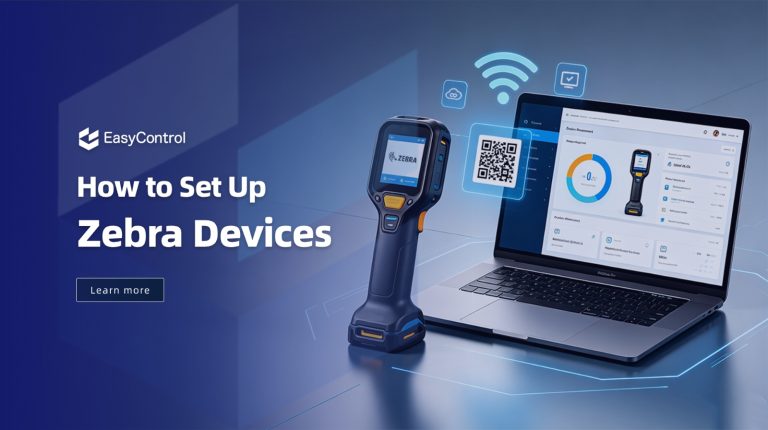
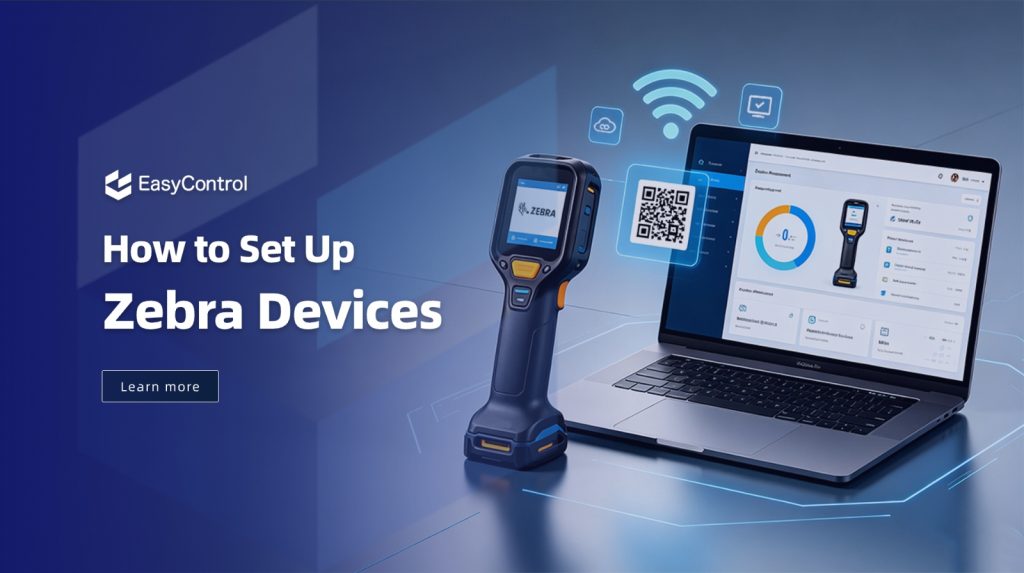
Set up Zebra devices for enterprise use involves more than simply enrolling hardware. Organizations typically use Zebra StageNow for initial device provisioning, while an enterprise Mobile Device Management platform helps manage devices throughout their lifecycle. EasyControl Unified Device Management works alongside Zebra’s deployment tools, enabling IT teams to centrally manage Zebra devices together with Android, Windows, macOS, Linux, and other enterprise endpoints from a single console. This guide explains how to set up Zebra devices efficiently for enterprise deployment while following industry best practices.
What Are Zebra Devices?
Before you set up Zebra devices, it is important to understand your deployment method, enrollment options, and management requirements. Zebra devices are rugged Android-based mobile computers built for demanding business environments. Unlike regular smartphones, they are designed to withstand drops, dust, water, and daily industrial use while offering features like barcode scanning, RFID support, and long battery life.
These devices are commonly used in warehousing, logistics, retail, manufacturing, healthcare, and field service to improve productivity and streamline operations. Popular Zebra product families include the TC Series, MC Series, EC Series, ET Series, and WT Series. As businesses deploy more devices, managing them manually becomes inefficient, making an MDM solution like EasyControl essential for centralized enrollment and management.
Expert Tip: Zebra StageNow is designed to simplify the initial provisioning of Zebra devices. For ongoing lifecycle management including policy enforcement, application deployment, remote support, compliance monitoring, and cross-platform device management, many organizations integrate StageNow with an enterprise MDM solution such as EasyControl UDM. This combination enables efficient provisioning while maintaining centralized management across the entire enterprise device fleet.
Why Zebra Devices Need Centralized Management
Organizations using Zebra devices need centralized management to simplify deployment, improve security, and reduce the time spent managing devices manually. With a remote device management solution, IT teams can enroll, configure, monitor, and troubleshoot Zebra devices from a single dashboard without requiring physical access to each device.
Zebra Android devices are designed for demanding environments such as:
- Warehouses
- Retail stores
- Manufacturing facilities
- Logistics companies
- Healthcare organizations
- Field service teams
Managing these devices manually becomes increasingly difficult as deployments grow.
A centralized MDM solution helps organizations:
- Configure devices remotely
- Deploy business apps
- Enforce security policies
- Monitor device health
- Lock devices into kiosk mode
- Track inventory
- Troubleshoot remotely
- Push updates without physical access
Instead of spending hours configuring devices individually, administrators can complete deployment in minutes.
What Enterprise Challenges Do Organizations Face When Managing Zebra Devices?
Deploying Zebra devices is only the beginning. As organizations scale their operations across warehouses, retail stores, healthcare facilities, or field teams, managing hundreds or thousands of devices becomes increasingly complex. An enterprise Mobile Device Management solution helps address these operational challenges while working alongside Zebra’s provisioning tools.
Challenge 1: Large-Scale Device Deployment
Rolling out hundreds of Zebra devices manually can consume significant IT resources. Each device must be configured with network settings, security policies, business applications, and user permissions, which makes manual deployment slow and error-prone.
How MDM Helps
- Enables bulk device enrollment
- Applies standardized configurations automatically
- Reduces manual setup time
- Ensures consistent settings across every Zebra device
Challenge 2: Application Management
Different departments or business locations often require different applications. For example, warehouse workers may need inventory software, while retail staff use POS applications.
Keeping applications updated manually across all devices quickly becomes difficult.
How MDM Helps
- Deploys applications remotely
- Pushes updates without user intervention
- Removes outdated or unauthorized applications
- Assigns apps based on device groups, departments, or locations
Challenge 3: Device Security and Usage Control
Enterprise-owned Zebra devices should be used only for business purposes. Unauthorized applications, unrestricted internet access, or incorrect settings may introduce security risks and reduce productivity.
How MDM Helps
- Enables kiosk mode for dedicated devices
- Enforces password and security policies
- Restricts application installation
- Controls device features based on organizational requirements
- Helps maintain compliance across the device fleet
Challenge 4: Remote Maintenance
Zebra devices are commonly deployed across multiple warehouses, retail branches, healthcare facilities, and field locations. Sending IT staff on-site whenever an issue occurs increases operational costs and delays issue resolution.
How MDM Helps
- Monitors device health remotely
- Provides remote troubleshooting capabilities
- Pushes configuration updates centrally
- Reduces device downtime
- Minimizes the need for physical IT support
What Are the Requirements to Set Up Zebra Devices?
Before you set up Zebra devices, gather all the required accounts, network credentials, and enrollment information.
- Zebra Android devices
- EasyControl UDM account
- Stable internet connection
- Company Wi-Fi credentials
- Google account (if required)
- Device enrollment credentials
- Business applications ready for deployment
- User or department assignments
Preparing these items beforehand ensures a smoother onboarding experience.
How to Set Up Zebra Devices Using EasyControl UDM
Step 1: Prepare Your Zebra Devices
The first step to set up Zebra devices is preparing both the hardware and your management environment. Before enrolling Zebra devices, prepare the deployment environment to ensure the enrollment process completes successfully without configuration errors. Completing these prerequisites also allows StageNow and EasyControl UDM to provision devices automatically during enrollment.
You should:
- Import the Zebra device serial numbers (SN) into EasyControl UDM.
- Verify that the Zebra device supports GMS and runs Android 7.0 or later.
- Check the device’s MX version in Settings > About Device > Software Components, or via StageNow.
- Factory reset the device to ensure a clean enrollment.
- Install the Zebra StageNow application on a Windows PC to generate the enrollment profile.
Step 2: Import Zebra Devices into EasyControl UDM
Log in to the EasyControl UDM Console.
Navigate to:
Android Enrollment → Zero-Touch
Launch the Quick Registration Wizard and choose the target device group where the Zebra devices will be managed. This allows newly enrolled devices to inherit the correct policies and applications automatically.
Step 3: Register Device Serial Numbers
Next, register your Zebra devices inside EasyControl.
You can:
- Add a single device by entering its Serial Number (SN)
- Bulk import multiple devices using an Excel (.xls/.xlsx) file
After the import is complete, the devices will appear in the Device List with the status Unregistered until enrollment is completed.
Step 4: Create a StageNow Enrollment Profile
Open the Zebra StageNow application.
Create a new profile by:
- Selecting Create Profile
- Choosing Xpert Mode
- Giving the profile a name (for example, EasyControl_Enrollment)
Then add the required modules:
- Application Manager
- Intent
These modules will install the EasyControl agent and automatically enroll the device during provisioning.
Step 5: Configure the EasyControl UDM Agent
Inside the Application Management module, configure StageNow to download and install the EasyControl UDM application automatically.
The profile should:
- Download the EasyControl APK
- Save it to the Zebra device
- Replace any existing version if necessary
- Install the application automatically
This eliminates the need for manual APK installation on every device.
Step 6: Configure Device Owner Enrollment
Next, configure the Intent module.
Select:
- Mode: Send Intent when XML processed
- Action: Enroll a Device Owner
Enter the EasyControl package and receiver information so that the device becomes fully managed immediately after provisioning.
Step 7: Generate the Enrollment QR Code
After completing the StageNow profile:
- Click Continue
- Complete the profile
- Select QR Code
- Export the generated PDF
After generating the QR code, you can quickly set up Zebra devices without configuring each device manually.
Step 8: Scan the QR Code on the Zebra Device
Turn on the factory-reset Zebra device and open StageNow.
Scan the generated QR code.
StageNow will automatically:
- Download the EasyControl UDM client
- Install the application
- Register the device with EasyControl
- Apply the enrollment configuration
No manual setup is required on the device.
Step 9: Verify Successful Enrollment
Once enrollment is complete:
- Restart the Zebra device.
- Connect it to the internet.
- Return to the EasyControl Device List.
The device status will change from Unregistered to Registered, confirming that it is now fully managed through EasyControl UDM.
Why Combine Zebra StageNow with an Enterprise MDM Solution?
Zebra StageNow simplifies initial provisioning by automating device setup. After enrollment, an enterprise MDM platform such as EasyControl UDM provides centralized management throughout the device lifecycle, including application deployment, policy enforcement, remote support, and compliance monitoring. Together, they create a scalable deployment and management workflow for enterprise Zebra devices
| Manual Setup | StageNow + EasyControl UDM |
| Configure devices one at a time | Bulk enrollment |
| Install apps manually | Automatic app installation |
| Higher risk of configuration errors | Standardized configuration |
| Requires physical access | QR-code-based provisioning |
| Slower deployment | Faster enterprise rollout |
Practical Example
Imagine a logistics company deploying 300 Zebra handheld scanners across multiple distribution centers.
Without MDM:
- Every device must be configured manually.
- Apps are installed individually.
- Wi-Fi settings are entered one by one.
- Troubleshooting requires physical access.
With EasyControl Unified Device Management:
- Devices are enrolled in bulk.
- Warehouse applications are deployed automatically.
- Security policies are applied instantly.
- Devices are grouped by location.
- IT administrators monitor everything from one dashboard.
This workflow helps enterprises set up Zebra devices faster while maintaining consistent security and compliance across every deployment.
What Are the Best Practices for Zebra Device Deployment?
Following Zebra deployment best practices helps reduce enrollment failures, improves device security, and ensures every device is configured consistently across the organization.
Follow these recommendations for a successful rollout:
- Plan device groups before enrollment.
- Use standardized configuration profiles.
- Enable device encryption.
- Deploy only approved applications.
- Regularly update operating systems and apps.
- Monitor device compliance.
- Use kiosk mode for task-specific devices.
- Back up configuration policies.
- Review security settings periodically.
- Train employees on proper device usage.
What Common Mistakes Should You Avoid?
Even with automated enrollment, small configuration mistakes can delay deployment or prevent Zebra devices from registering correctly. Avoiding the following issues helps ensure a smooth enrollment process.
Skipping Device Groups
Managing hundreds of individual devices becomes inefficient without proper grouping.
Weak Security Policies
Failing to enforce passwords or encryption increases security risks.
Manual App Installation
Installing applications individually wastes time and leads to inconsistent setups.
Ignoring Updates
Outdated operating systems and applications expose devices to vulnerabilities.
Lack of Monitoring
Without continuous monitoring, battery failures, storage issues, or offline devices may go unnoticed.
Why Choose EasyControl UDM for Zebra Devices?
EasyControl UDM simplifies enterprise device management with features designed for scalable deployments.
Key capabilities include:
- Centralized device management
- Remote monitoring and support
- Android Enterprise compatibility
- Bulk enrollment
- Kiosk Mode configuration
- Application deployment
- Security policy enforcement
- Remote troubleshooting
- Device grouping
- Compliance monitoring
- Inventory visibility
- OTA policy updates
These features make it easier to manage Zebra devices across warehouses, retail stores, healthcare facilities, and field operations.
Which Zebra Devices Can Be Managed Using EasyControl UDM?
EasyControl UDM supports a wide range of Zebra Android devices used across enterprise environments. This includes popular product families such as the TC Series, MC Series, EC Series, ET Series tablets, and WT Series wearable computers. Supported devices can be enrolled using the StageNow provisioning workflow, allowing IT administrators to centrally configure, secure, and manage them throughout their lifecycle.
Conclusion
Learning how to set up Zebra devices correctly helps organizations simplify deployment, strengthen security, and reduce ongoing IT management efforts. Zebra StageNow streamlines the initial enrollment process, while EasyControl UDM helps organizations centrally manage Zebra devices alongside Android, Windows, macOS, Linux, and other enterprise endpoints from a single platform. Together, they enable standardized deployments, stronger security, remote maintenance, application management, and simplified enterprise device administration at scale.
FAQ
Yes. Zebra provides enterprise device management capabilities and tools such as StageNow and Zebra DNA.
For organizations managing mixed environments, a cross-platform MDM solution helps manage Zebra devices together with other Android, Windows, and enterprise devices from one console.
Zebra StageNow is a provisioning tool used to configure Zebra devices, apply device settings, install applications, and prepare devices for enterprise deployment.
StageNow is commonly used together with an MDM platform for automated enrollment and lifecycle management.
Zebra devices can be enrolled in bulk using methods such as StageNow, Android Zero-touch, or QR enrollment.
Combined with an MDM platform, IT teams can automatically configure devices, install applications, and apply security policies without manually setting up each device.
Yes. After enrollment, Zebra scanners can be remotely managed through an MDM platform.
IT teams can deploy applications, update configurations, monitor device status, apply security policies, and troubleshoot devices without physical access.
EasyControl helps enterprises manage Zebra devices together with other enterprise endpoints, including Android devices, Windows devices, and specialized terminals.
Its advantage is providing unified management across different platforms instead of managing each device ecosystem separately.
Balises
Articles connexes
Blog
What Is iOS Device Management? Complete Guide
Why iOS Device Management Matters for Businesses iPhones and iPads have become useful tools for businesses of all sizes. Employees use them to communicate, access company applications, manage customer information, complete fieldwork, and perform everyday tasks. Schools, retailers, healthcare organizations, and hospitality businesses also rely on Apple devices for specialized operations. But managing one or...
15 sept. 2026
Blog
Non Compliance and Compliance: A Guide to Compliance Risk Management
Managing hundreds or thousands of smartphones, tablets, rugged devices, and other enterprise endpoints is a major challenge for IT and security teams. Every device that accesses business applications or company data must meet defined security, configuration, application, and management requirements. Understanding device compliance and non-compliance helps organizations determine whether their devices meet these requirements. However,...
27 août 2026
Blog
What Is a Conditional Access System and Why Is It Important for Zero Trust Security?
Quick Answer: A conditional access system is a security framework that evaluates user identity, device compliance, security policies, location, and risk before granting access to enterprise resources. It is a key part of Zero Trust security because it verifies every access request instead of automatically trusting users or devices. Introduction In the last decade, there...
10 août 2026
Continuez à explorer les ressources EasyControl
Allez plus loin avec la documentation, les guides stratégiques, les témoignages de clients et le contenu vidéo dans le centre de ressources.