
Blog
How to Block Website in Mobile Devices (Android & iPhone)
Learn how to block website in mobile devices using browser settings, parental controls, and MDM software. Follow this complete guide for secure and effective we
- 作者
- Anna
- 发布日期
- 2026年3月13日
- 更新日期
- 2026年5月11日
Mobile phones such as smartphones and tablets are becoming popular in workplaces as well as in schools and at home as well. The internet is a great tool to aid people in their work; However, it is possible to expose them to harmful or distracting information that must be blocked from mobile devices. Therefore, many companies and parents are seeking methods on how to block website in mobile phones.
Blocking specific websites helps businesses increase productivity, protect sensitive data and monitor how company devices are utilized. Schools also often block inappropriate material in order to keep students focused, while parents use restrictions as a safeguard in creating safer internet experiences for children.
Mobile Device Management software provides administrators with an efficient method for controlling website access across multiple devices. Administrators can block websites on Android phones, iPhones and tablets all from one central dashboard – improving security while improving device control.
Why Blocking Websites on Mobile Devices Is Essential
Learning how to block a site on your phone is an integral component for individuals as well as organizations looking for greater control on mobile devices.
Reducing Access to Harmful Websites
Some websites contain malicious links, phishing attacks or inappropriate material which pose security risks; blocking these websites helps keep users protected against security risks.
Increase Employee Productivity
Employees use social media during work hours for entertainment, which can distract them from their work. Blocking these sites can help organizations keep employees focused on their tasks.
Parental Control for Kids
The majority of children use tablets and smartphones for education and for entertainment. Parents should block dangerous sites or websites for adults to ensure an online environment that is secure.
Data Security for Businesses
Devices for companies often contain sensitive data. By blocking websites with harmful content, you reduce the risk of malware attacks as well as data breaches.
Compliance and Device Management
Companies that have strict security standards typically implement restrictions on their websites to maintain compliance. The control of devices.
What Is MDM Software and How Does It Help Block Websites
Mobile Device Management is an organization-level solution used to efficiently secure smartphones, tablets and other mobile devices from a central dashboard. MDM permits administrators to remotely configure device settings, install applications and enforce security policies as well as control internet access from multiple mobile devices at once.
MDM software features one powerful functionality known as website filtering that enables administrators to block specific websites.
By learning how to block a website, admins can block access to unwanted sites across all managed devices instantly.
MDM solutions are commonly used by:
- Businesses
- Schools and universities
- Enterprises
- Retail kiosk environments
- Field workforce organizations
This centralized management helps administrators control hundreds or even thousands of devices efficiently.
Methods to Block Websites on Mobile Devices
There are various methods available for mobile device users who wish to block certain websites; some methods can be utilized by individuals while others are more appropriate for organizations.
1. Browser Settings
Some browsers allow basic website blocking capabilities; this feature can help if you want to know how to block website in mobile device for personal reasons.
However, browser-level restrictions are usually temporary since users can bypass them by switching browsers.
2. Parental Control Application
Parents can use parental control apps to limit internet access for their children.
Screen Time (iOS)
Apple’s Screen Time feature gives parents control to block particular websites or limit offensive material on iPhones and iPads.
Google Family Link
Google Family Link aims to assist parents in managing Android devices for themselves as well as monitoring children’s online activity, with ease and without hassle for an entire household. Unfortunately, while these tools work great with individual families, they may not be suitable when managing multiple business devices at the same time.
3. Using MDM Software
For organizations, MDM software is the most efficient way to block websites on mobile devices.
With MDM, administrators can:
- Block websites remotely
- Apply policies to multiple devices
- Control device usage
- Monitor device activity
This is what makes MDM the most preferred choice for schools, companies and other enterprises that require an effective device management system.
Step-by-Step Guide: How to Block Website in Mobile Device Using MDM Software
Below is a practical guide explaining how to block website in mobile devices using MDM software.
Step 1: Enroll the Android device in EasyControl MDM
Log into EasyControl dashboard, access Android Enrollment from left side menu and complete enrollment on Android device you are managing. Enrolled devices can receive security policies and website blocking rules imposed via EasyControl Dashboard.
Step 2: Verify the enrolled device in the Device Group
After completing enrollment, open the Device Group menu and check whether the device appears in the device list. This confirms that the device has been successfully enrolled in EasyControl and is ready to receive policies and restrictions.
Step 3: Open the Policy section
Next, click Policy from the left-side navigation panel. This is where administrators can create and manage different device restrictions, including browser access rules.
Step 4: Create a new Android policy or edit an existing one
Inside the Policy section, open Policy/Android AOSP. You can add a new policy or edit an existing one, depending on your device management setup.
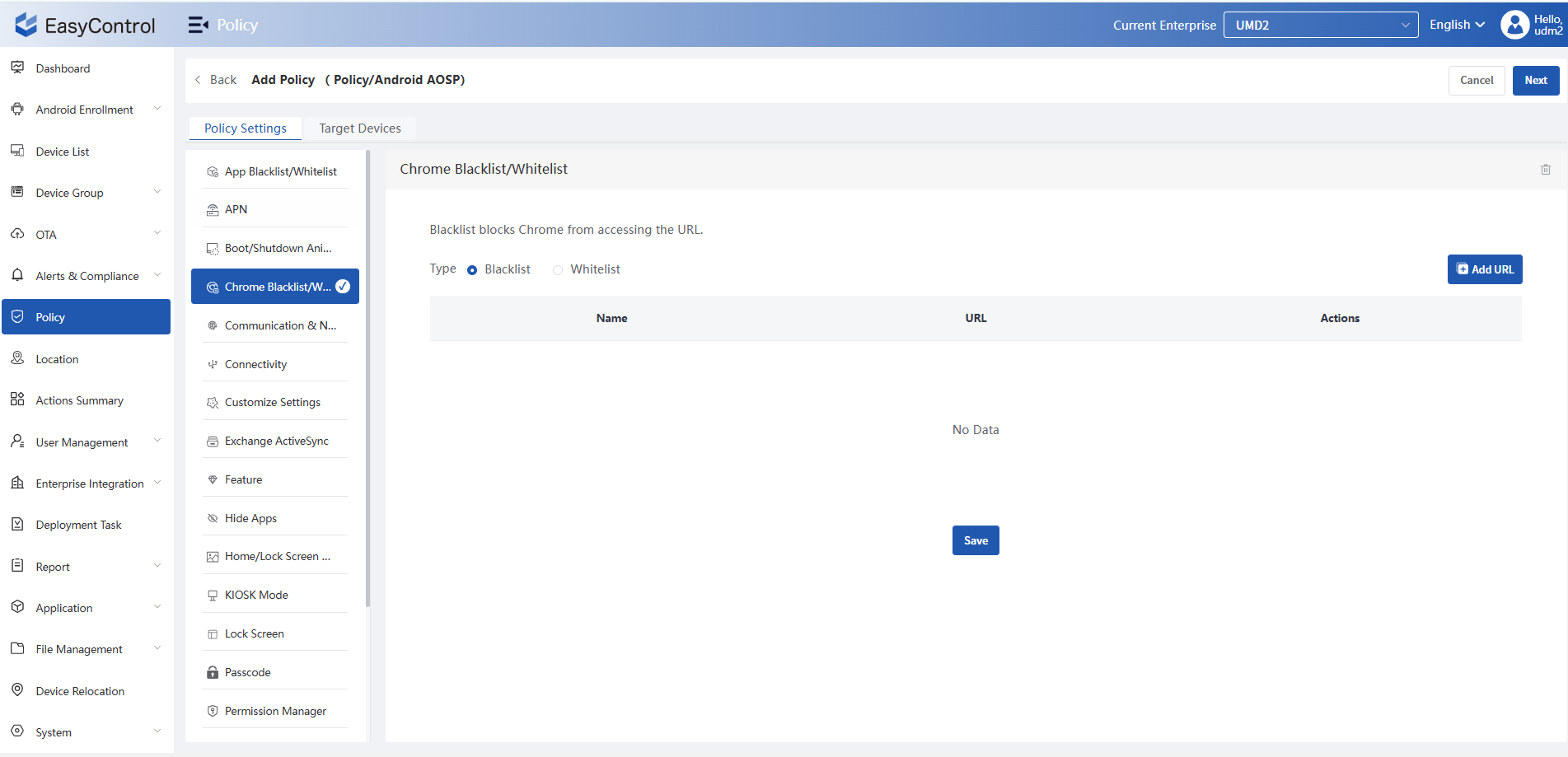
Step 5: Go to Chrome Blacklist/Whitelist
Under the Policy Settings tab, find and select Chrome Blacklist/Whitelist from the settings menu. This section is used to control which websites Chrome can access on managed Android devices.
Step 6: Select Blacklist mode
Choose the Blacklist option. Blacklist mode blocks access to the specific websites you add to the policy. This is the best option when you want to restrict selected websites without affecting all other browsing activity.
Step 7: Click Add URL
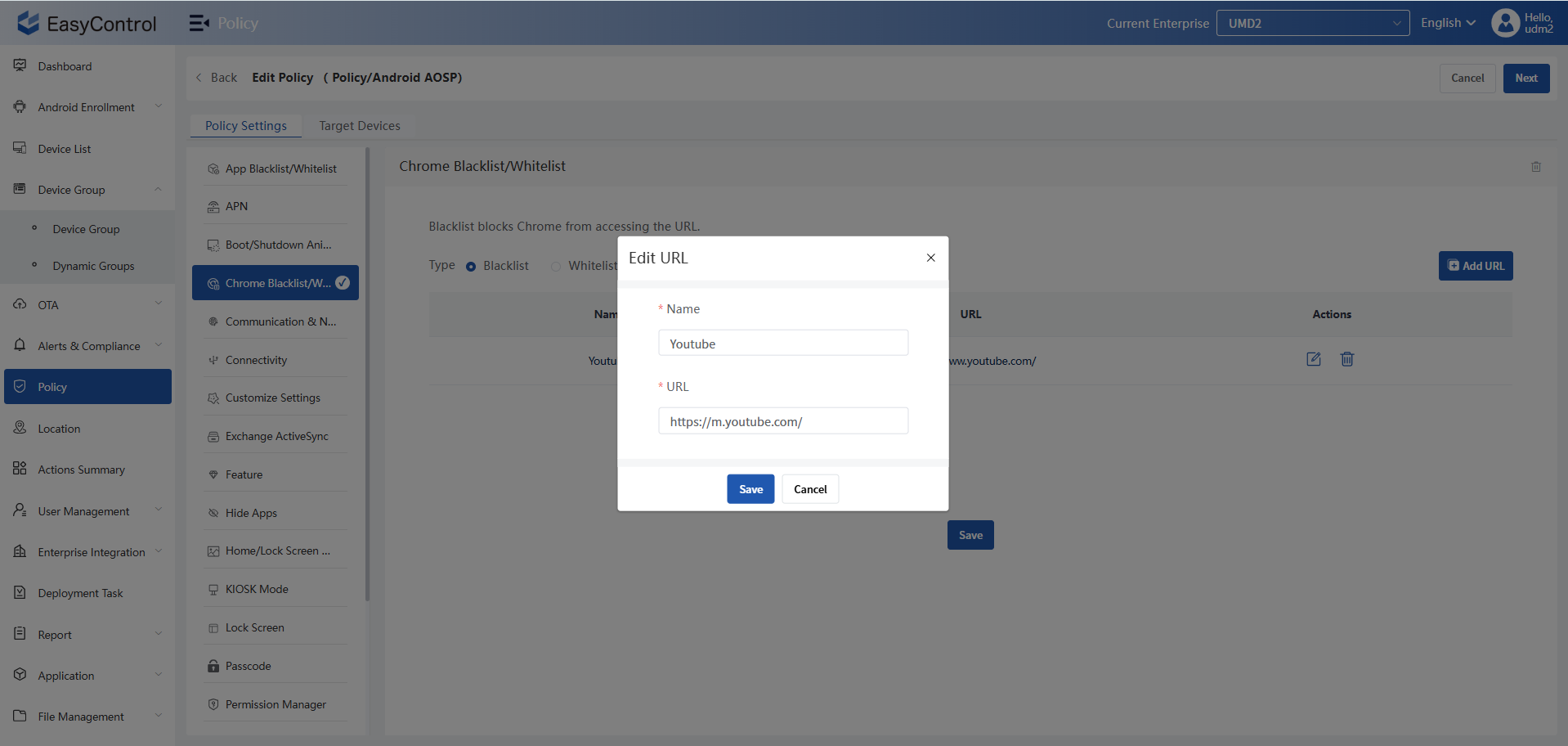
Clicking the Add URL button on the right-side screen will bring up a pop-up window allowing you to enter details for any websites you would like blocked.
Step 8: Enter the website name and URL
Create an entry for YouTube using a proper name such as YouTube in the pop-up box and enter its full address e.g. https://m.youtube.com for easier identification later when managing multiple entries. Providing this detailed name makes managing multiple entries simpler.
Step 9: Save the blocked website entry
Once the required details have been entered into a pop-up window and saved, your blocked website will then appear under the Chrome Blacklist/Whitelist section of your list.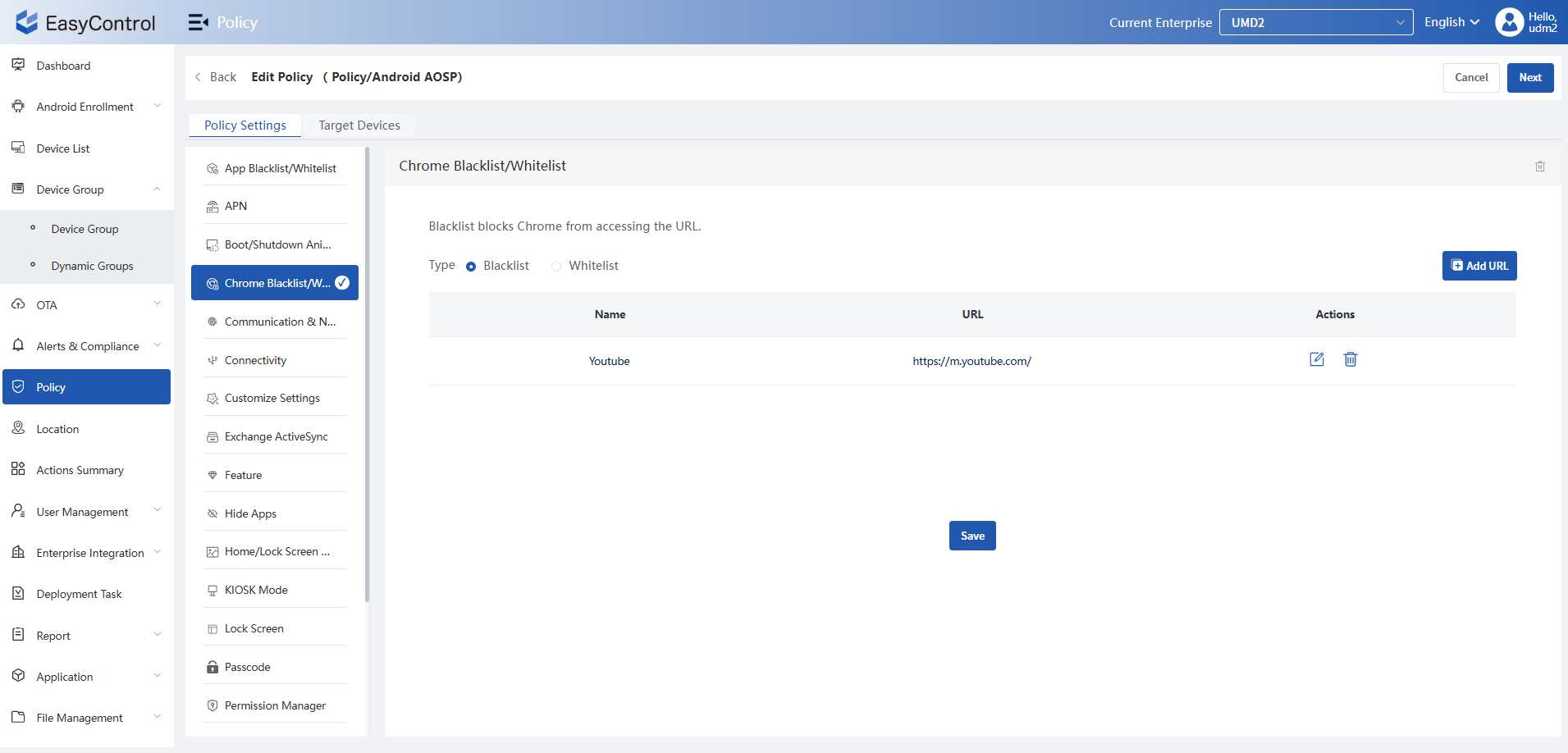
Step 10: Save the policy settings
Once the URL has been added successfully, click the main Save button on the page. This stores the website restriction inside the selected policy.
Step 11: Assign the policy to target devices
Now open the Target Devices tab and select the enrolled Android devices that should receive this policy. This step links the website blocking rule to the devices you want to manage.
Step 12: Sync the device and apply the restriction
Allow the enrolled device to sync with the EasyControl server. Once synchronization is complete, the Chrome blacklist policy will be pushed to the device automatically.
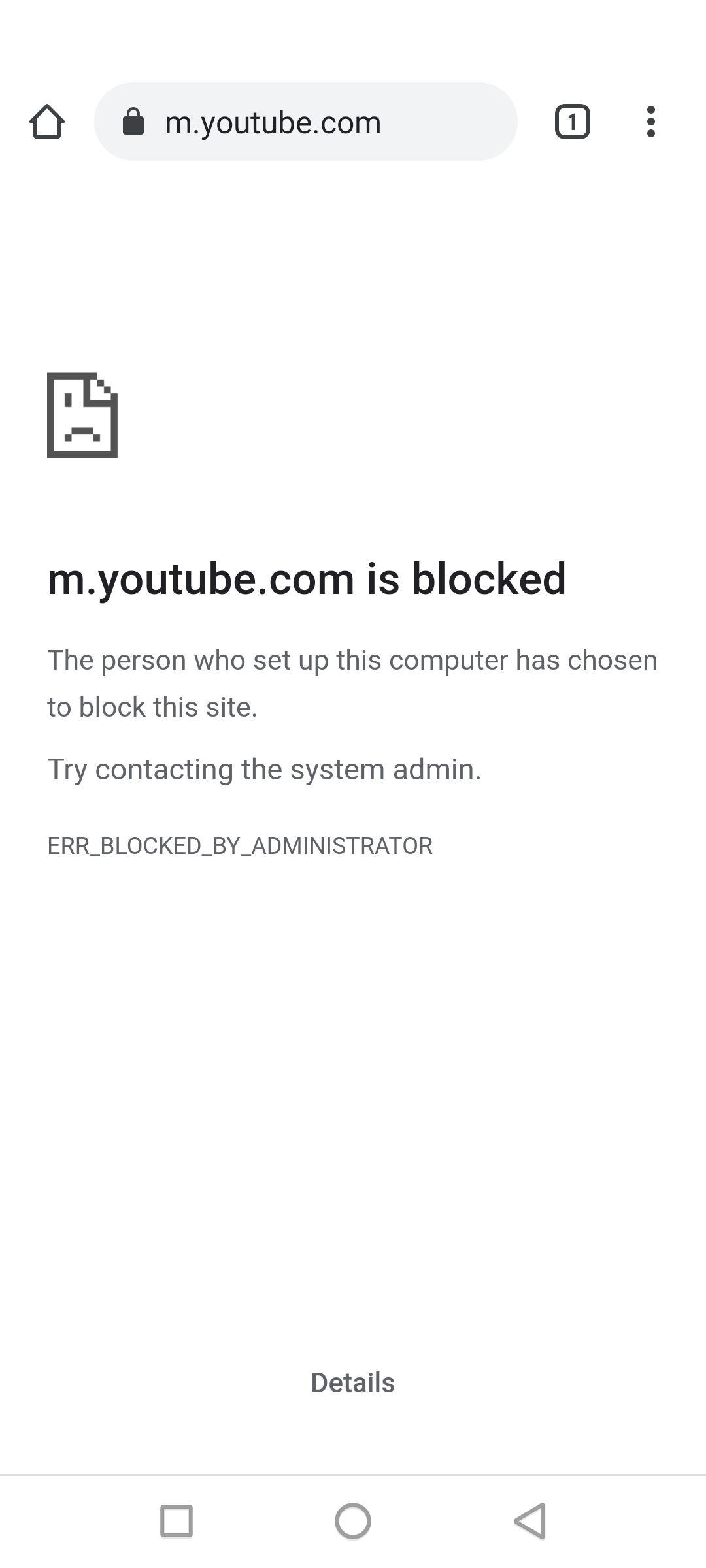
Step 13: Test the blocked website on the Android device
To verify that the policy is working, open Chrome on the managed Android phone or tablet and try to access the blocked website. If everything has been configured correctly, the browser will display a message showing that the site has been blocked by the administrator, along with the error ERR_BLOCKED_BY_ADMINISTRATOR.
Outcome
EasyControl MDM makes it possible for administrators to implement web blocking policies across both Android and iOS devices in a structured and scalable fashion, from device enrollment all the way through policy creation, URL blacklisting and assigning policies – with settings possibly differing between Android devices and iOS devices nonetheless this overall workflow remains similar – perfect for businesses, schools or organizations that need stronger control of internet access for increased productivity or protection from harmful or distracting websites.
Benefits of Blocking Websites Using MDM
Using MDM software to block websites on mobile devices provides several advantages.
Centralized Control
Administrators are able to manage restrictions on websites across all devices using a single page.
Remote Device Management
The policies can be applied and changed remotely, without having to access devices physically.
Improved Productivity
By blocking distracting websites, employees can remain focused on working.
Enhanced Device Security
The blocking of malicious websites helps protect devices from threats to their security and computer systems.
Easy Policy Updates
Admins can easily modify or update restrictions whenever necessary.
Best MDM Software for Blocking Websites
One of the reliable solutions for website control is EasyControl MDM.
EasyControl provides powerful device management features that help businesses secure and manage mobile devices effectively.
Key Features of EasyControl
- Website blocking and filtering
- Remote device management
- Kiosk mode for dedicated devices
- Application control
- Security and compliance management
With these features, EasyControl helps administrators control device usage and improve security across multiple devices.
Understand how to block websites in mobile devices is becoming an increasing priority for organizations and individuals who desire greater control of internet use. Blocking access to any harmful or distracting websites can improve productivity, strengthen security and ensure mobile devices are used responsibly.
Personal devices often only need simple solutions like browser restrictions or parental control apps; organizations managing multiple devices often need more advanced solutions.
Mobile Device Management, or MDM, has become an indispensable solution. Administrators use it to effectively administer multiple smartphones and tablets from a centralized platform while enforcing security policies or blocking websites when necessary – providing IT teams the ability to efficiently regulate internet access across an entire fleet of mobile devices while keeping security intact and maintaining productivity levels.
Companies looking for an easy and secure method of blocking websites on mobile devices will find platforms such as EasyControl a great help in this department. These devices streamline device management while upholding security policies – creating an environment in which employees can remain more productive while remaining safe at work.
Frequently Asked Questions (FAQs)
How do I block a website on my phone?
Block websites on your phone using browser settings, parental control apps or Mobile Device Management solutions – MDM services provide businesses with more efficient ways of overseeing multiple devices simultaneously.
How can businesses block websites on employee phones?
Businesses frequently utilize MDM software to deploy website filtering policies across company devices, enabling administrators to remotely block sites or enforce browsing restrictions across devices.
How do I blacklist websites on mobile devices?
An MDM platform offers the ideal way to blacklist websites. Administrators can directly add URLs to a restricted list and apply policies across multiple devices simultaneously.
Are websites blocked on Android and iPhone by MDM?
Modern MDM solutions support both Android and iOS devices, giving companies access to the tools they need for blocking websites, app management, and enforcing security policies across these devices.
标签
Related Articles
Blog
Endpoint DLP Explained: Secure Enterprise Data in Hybrid Work
Discover how Endpoint DLP and UEM secure enterprise data in hybrid work with device control, app management, and real-time monitoring
2026年5月7日
Blog
Enterprise App Management: Build Secure App Store & Policies
Learn how enterprise app management helps businesses control apps, improve security, and automate deployment using app stores and policies.
2026年4月15日
Blog
What Is Unified Device Management? Cross-Platform Guide (2026)
Learn how unified device management helps businesses manage Android, iOS, macOS, and Windows devices from one platform with better security and efficiency.
2026年4月14日